
















A USB flash drive is the simplest way to move files between computers or hand pictures to someone. Choose the plug by your devices: USB-A, USB-C or both on the same drive. Newer USB standards are noticeably faster with large image files, and the capacity is chosen by how much you move.
Read more about USB flash drives
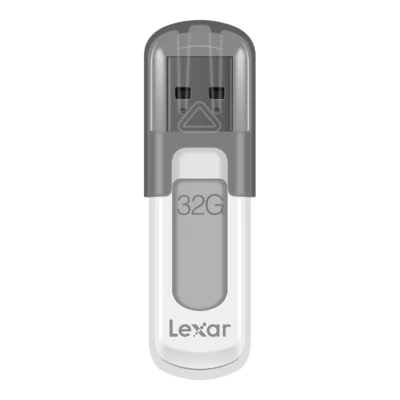
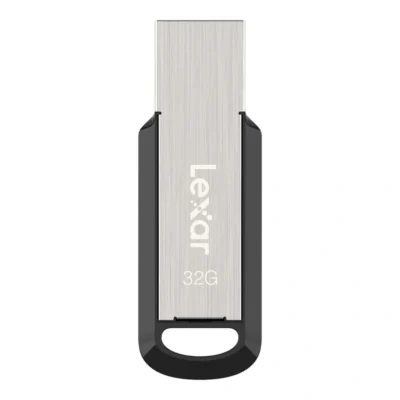

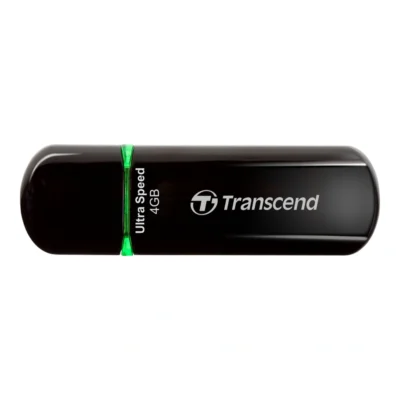
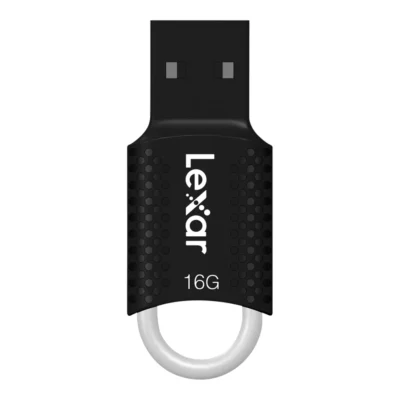
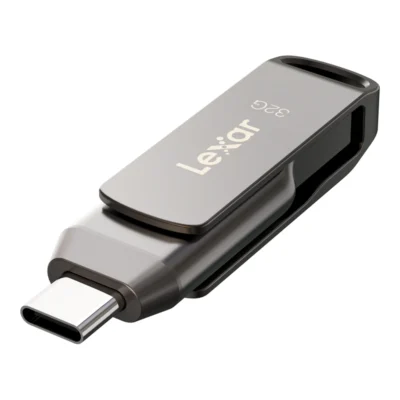
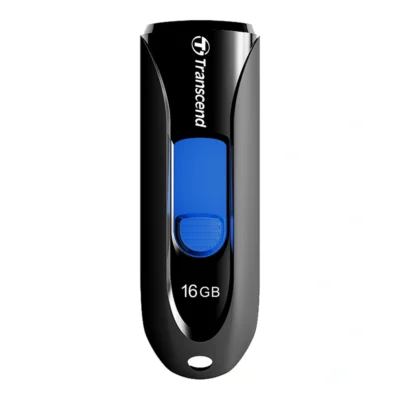
When a USB stick is the right choice
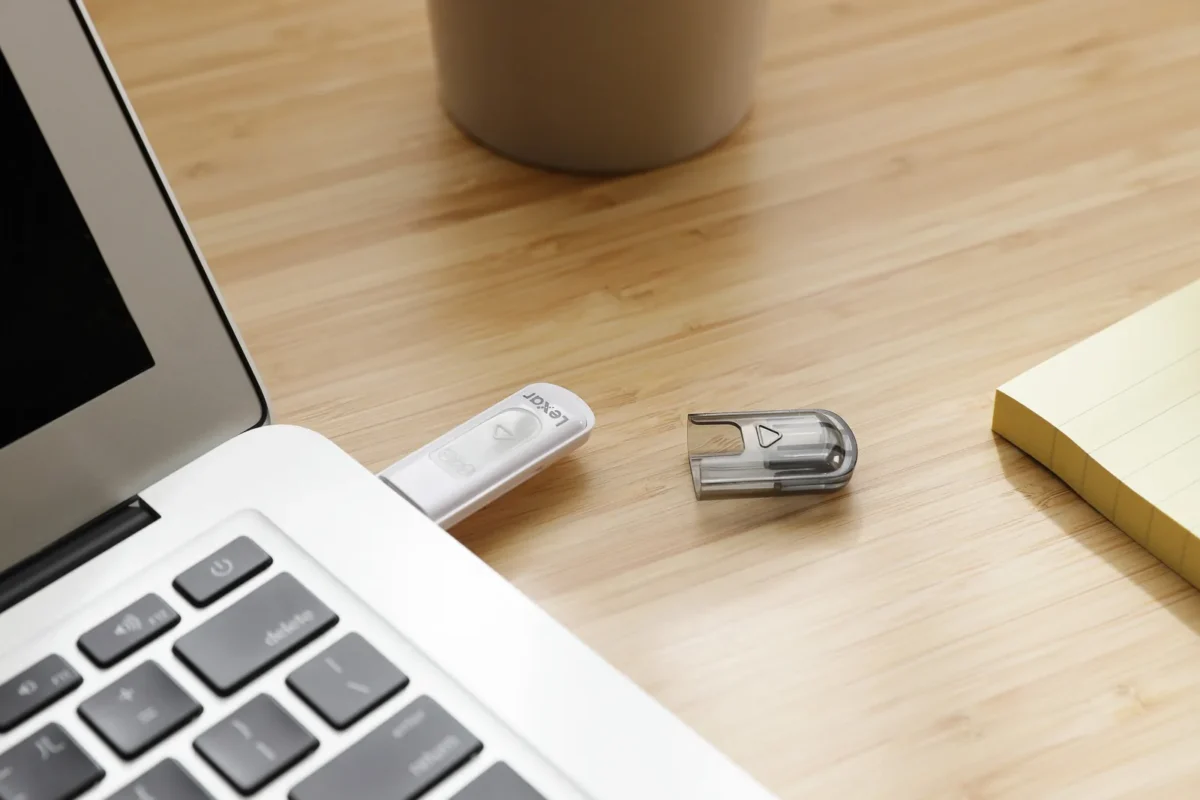
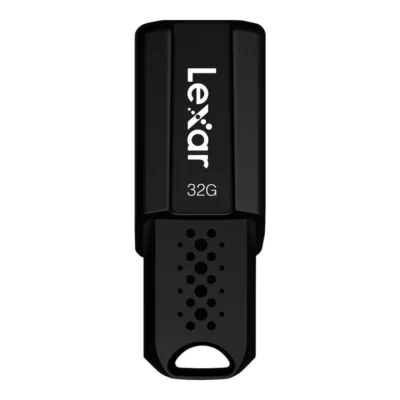
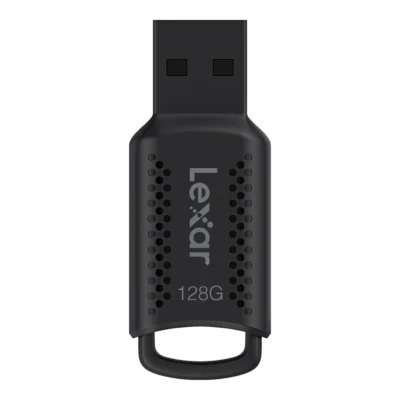
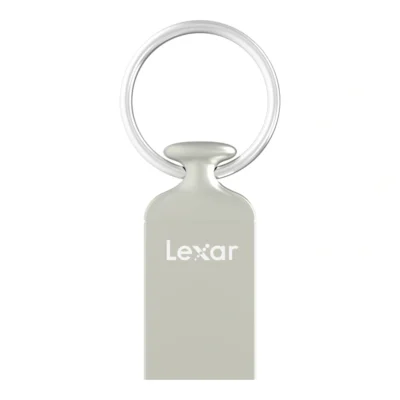
A USB stick does a few things really well. It is cheap enough to give away, so it suits handing over wedding pictures to a couple, a slideshow to a club or files to a photo lab. It goes into many TVs and digital photo frames, and works in almost any computer without installing anything.
As your only backup, though, it is a poor choice. It is small, easy to lose and not made to be rewritten over and over for years. Pictures you cannot afford to lose belong on an external drive, ideally with one more copy elsewhere. If you move large amounts of video every week, an external SSD is also far faster.
USB 2.0 or USB 3, and why write speed matters
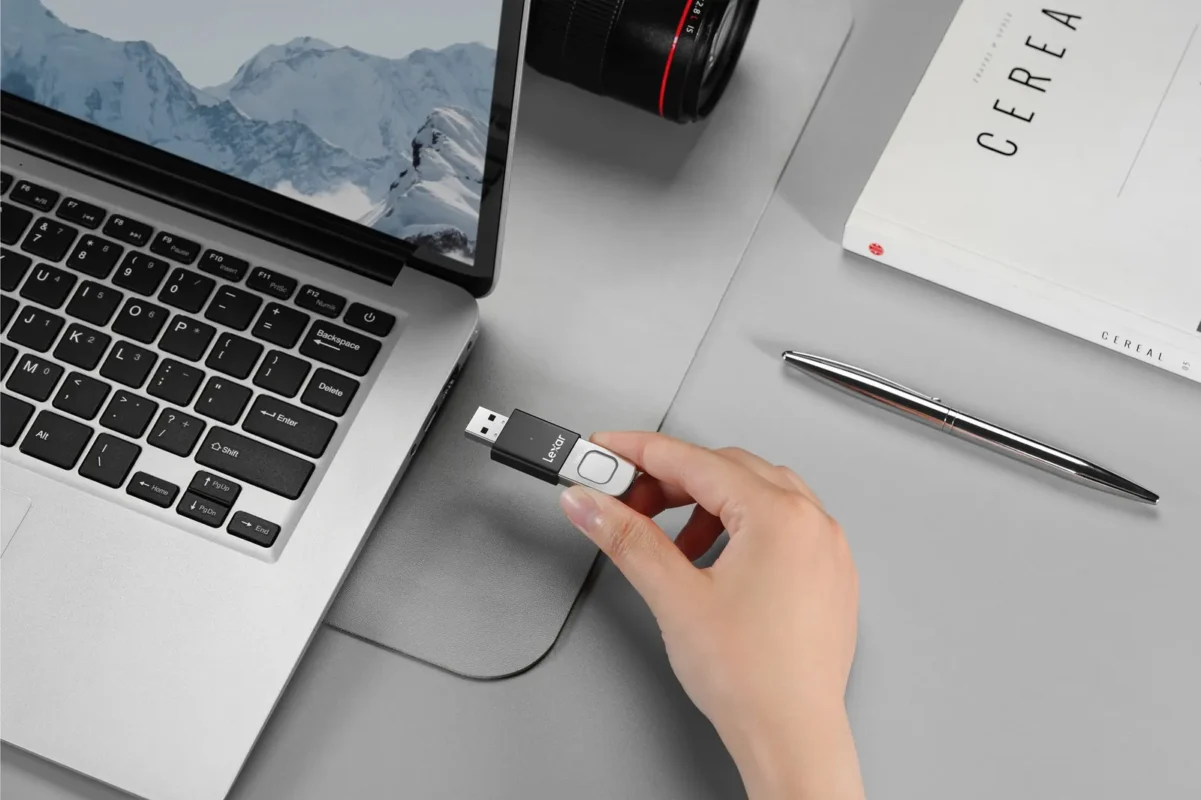
USB 2.0 sticks rarely manage more than 30 to 40 MB/s in real use. You will not notice with a few documents, but a 20 GB folder of RAW files then takes a good while. Sticks with USB 3.0, 3.1 or 3.2 Gen 1 in our range read at 100 to 300 MB/s, and they fit the same ports as the older ones.
Look at the write speed if it is given. It is almost always lower than the read speed, and it decides how long you wait while filling the stick. Within one model the speed can also vary between sizes. Lexar's fingerprint stick, for example, writes much more slowly in 64 GB than in 128 GB.
For a stick that will mostly be given away this matters less. For one you move files with every day, USB 3 is worth the extra money.
USB-A, USB-C or both
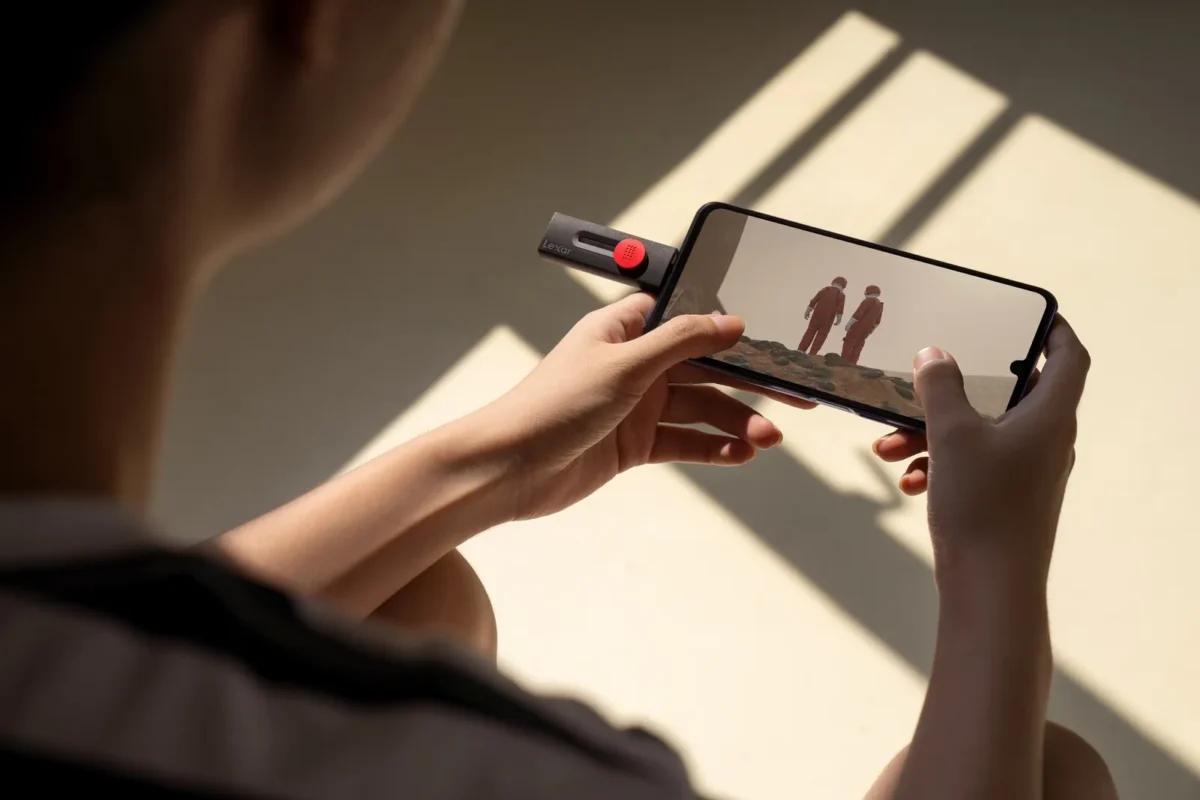
USB-A is the old rectangular plug still found on most desktop computers, TVs and cars. USB-C is the smaller reversible plug on new laptops, tablets and phones. An ordinary USB-A stick works in USB-C with an adapter, but that is one more thing to lose.
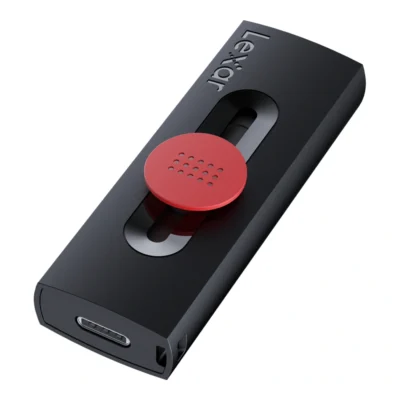
Lexar's dual sticks have USB-A at one end and USB-C at the other. You can move pictures off your phone and then plug the stick straight into an older computer. They are the ones we recommend most often to people who want to get photos off their phone.
Capacity and file systems
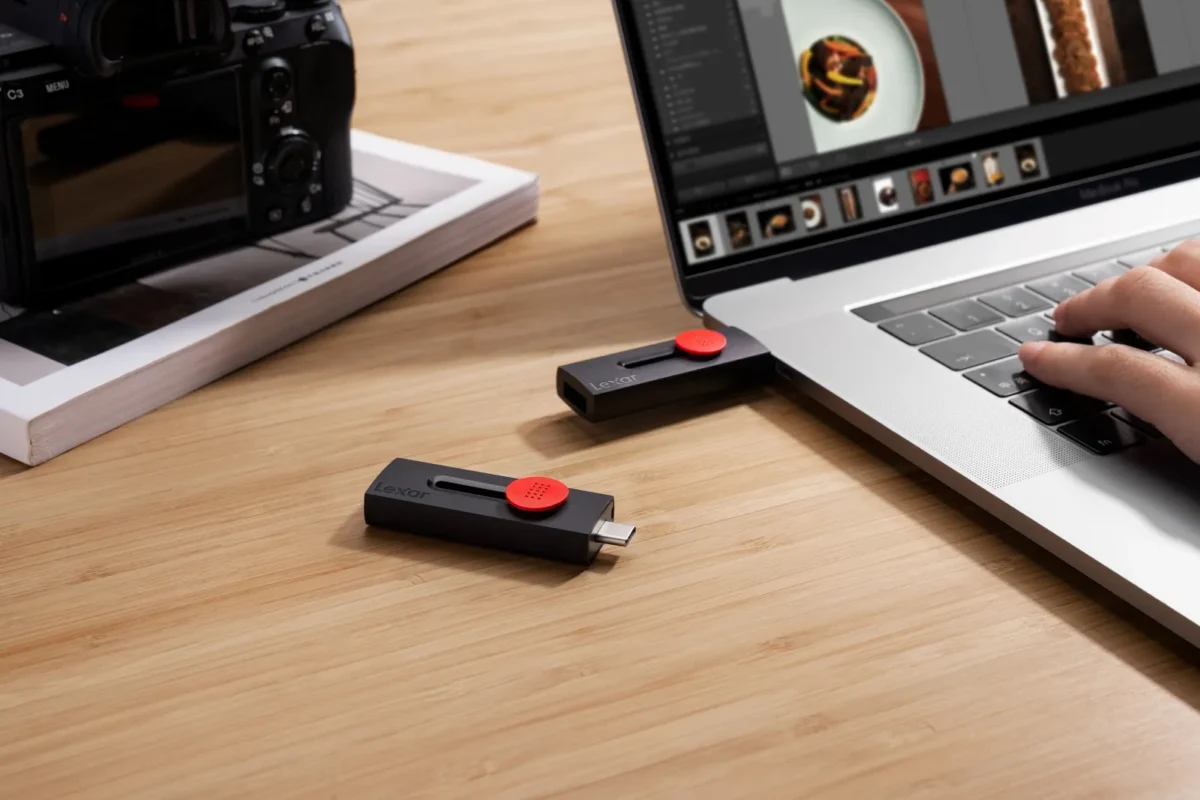
We stock USB sticks from 4 GB to 512 GB. For documents and a JPEG slideshow, 32 or 64 GB is plenty. For RAW files and video, 128 GB or more makes sense.
One detail catches many people out. A stick formatted as FAT32 cannot take a single file larger than 4 GB, and longer video files easily hit that limit. Format the stick as exFAT instead, which works on both Windows and macOS. If the stick is going into an older TV or car, it may need FAT32, so try a small file first.
Security and handling
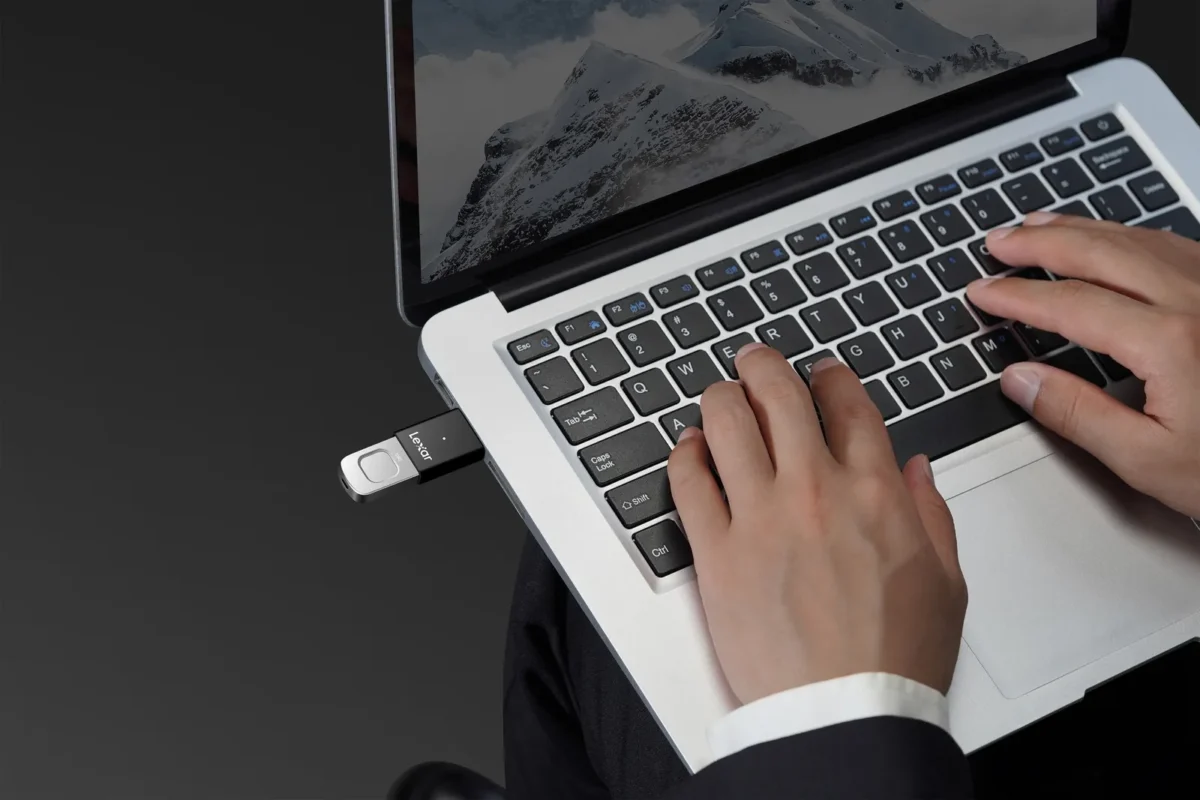
If the stick will hold client pictures or other sensitive material, one with a fingerprint reader can be worth it. Lexar's model unlocks with your finger and stores up to ten fingerprints, so several people can get access without sharing a password.
Always eject the stick on the computer before pulling it out, especially right after copying files to it. The computer may still be writing in the background, and an interrupted write is the most common way to end up with a stick that cannot be read. Sticks with a retractable plug or a cap survive a pocket better than one with the plug exposed.
Frequently asked questions about USB flash drives
Is a USB stick good for storing photos?
For moving or handing over pictures, yes. As your only backup it is less suitable, since it is easy to lose and not built for years of rewriting. Keep important pictures on an external drive as well.
How big a USB stick do I need for photos?
For JPEGs and slideshows 32 or 64 GB is usually enough. With RAW files or video, 128 GB or more makes sense. Expect a RAW file to take around 25 to 30 MB.
What is the difference between USB 2.0 and USB 3?
USB 3 is much faster. A USB 2.0 stick rarely tops 30 to 40 MB/s, while our USB 3 sticks read at 100 to 300 MB/s. USB 3 sticks also work in older USB 2.0 ports, only at lower speed.
Why can't I copy a large file to my USB stick?
The stick is probably formatted as FAT32, which does not accept files over 4 GB. Reformat it as exFAT, but copy off what is on it first, since formatting erases everything.
Are there USB sticks for both phone and computer?
Yes, sticks with both USB-C and USB-A. Use the USB-C end in the phone to copy the pictures, then plug the USB-A end into the computer, no adapter needed.